
Make PDFs Accessible to More Students (Fundamentals)
Making PDFs accessible can be difficult, but taking a few easy steps will open up your content to many more users.
This article can help with everyday content. If your PDFs are more complex, we strongly recommend the LinkedIn Learning course Creating Accessible PDFs by Chad Chelius. LinkedIn Learning is a free resource available to everyone at Swarthmore.
What Makes a PDF Accessible?
Getting a PDF to full WCAG accessibility compliance can be complex; there are technical specifics that require a bit of training to understand. However, PDFs with the following basic characteristics generally meet the majority of students’ needs, including many students with disabilities:
- Searchable text—if you can copy and paste text from the PDF into another document, the PDF has real text and is not an image of text
- Structure—tags for paragraphs, headings, images, and other elements
- Alt text—meaningful text descriptions for all images that are not decorative
- A metadata title
- The document’s language identified in the metadata
Fortunately, these steps can be easily accomplished with one tool in Adobe Acrobat.
Before You Begin
Accessible PDFs Start with Accessible Source Files
The best way to improve the accessibility of a PDF is to first make its source file as accessible as you can by using accessibility checkers and following guidance on creating good scans. See Accessible Alternatives to PDF (option 2) for more details.
The “Make Accessible” Guided Action
The tool we have found to be most helpful and efficient is the Make Accessible guided action in Acrobat. Depending on the number of pages and images, it should only take a few minutes to complete the guided action. The following instructions explain what to do at each step.
- Open the PDF in Acrobat.
- In the Search bar (accessed from the magnifying glass), start typing “use,” then click on the auto-suggestion Use guided actions.
OR
In the upper left corner, click on All tools, then View more at the bottom of the list. Scroll down to Use guided actions (or Action Wizard for older versions of Acrobat).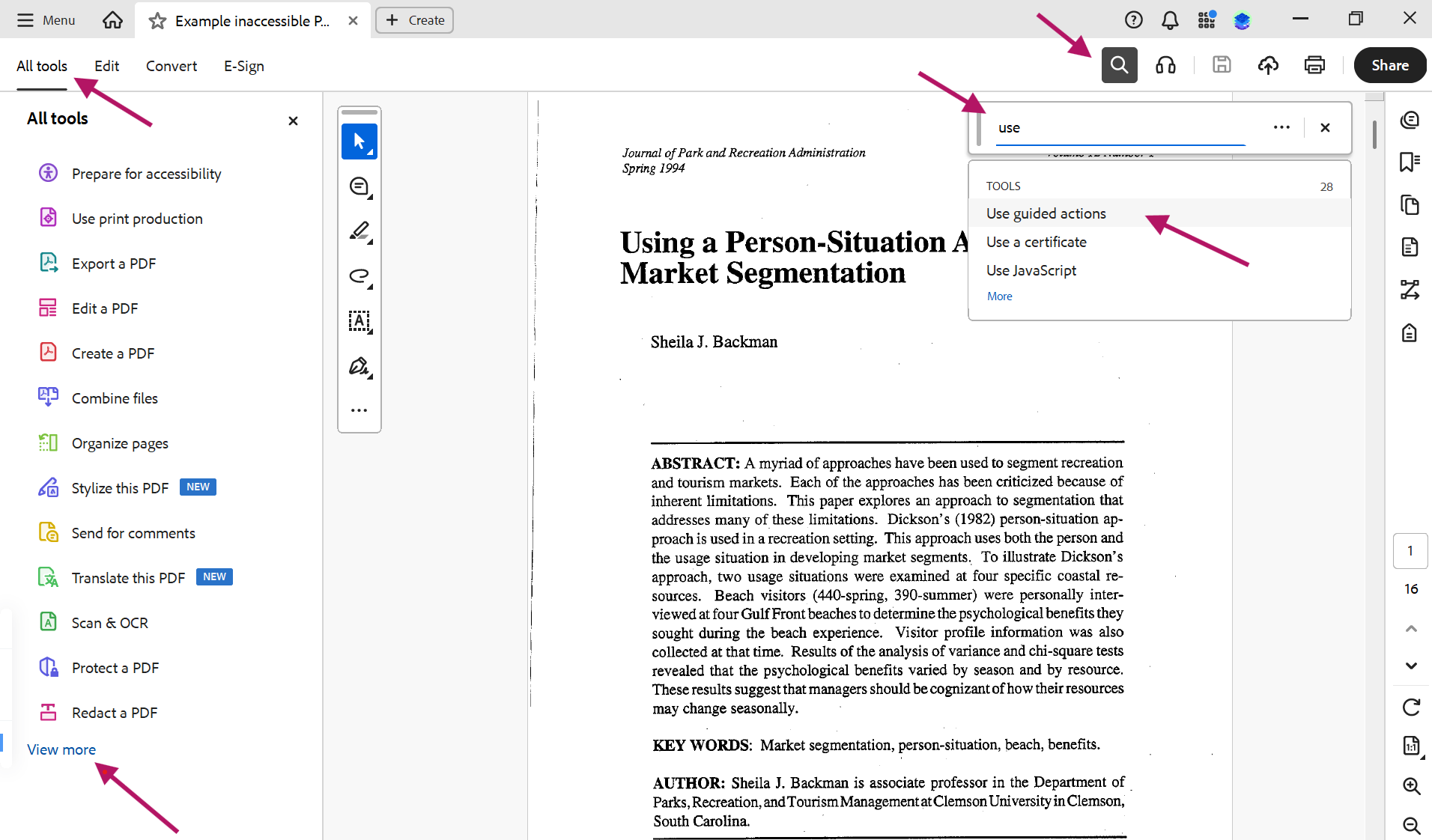
- Click on the Make Accessible option, then Start. A series of dialog box prompts will guide you.
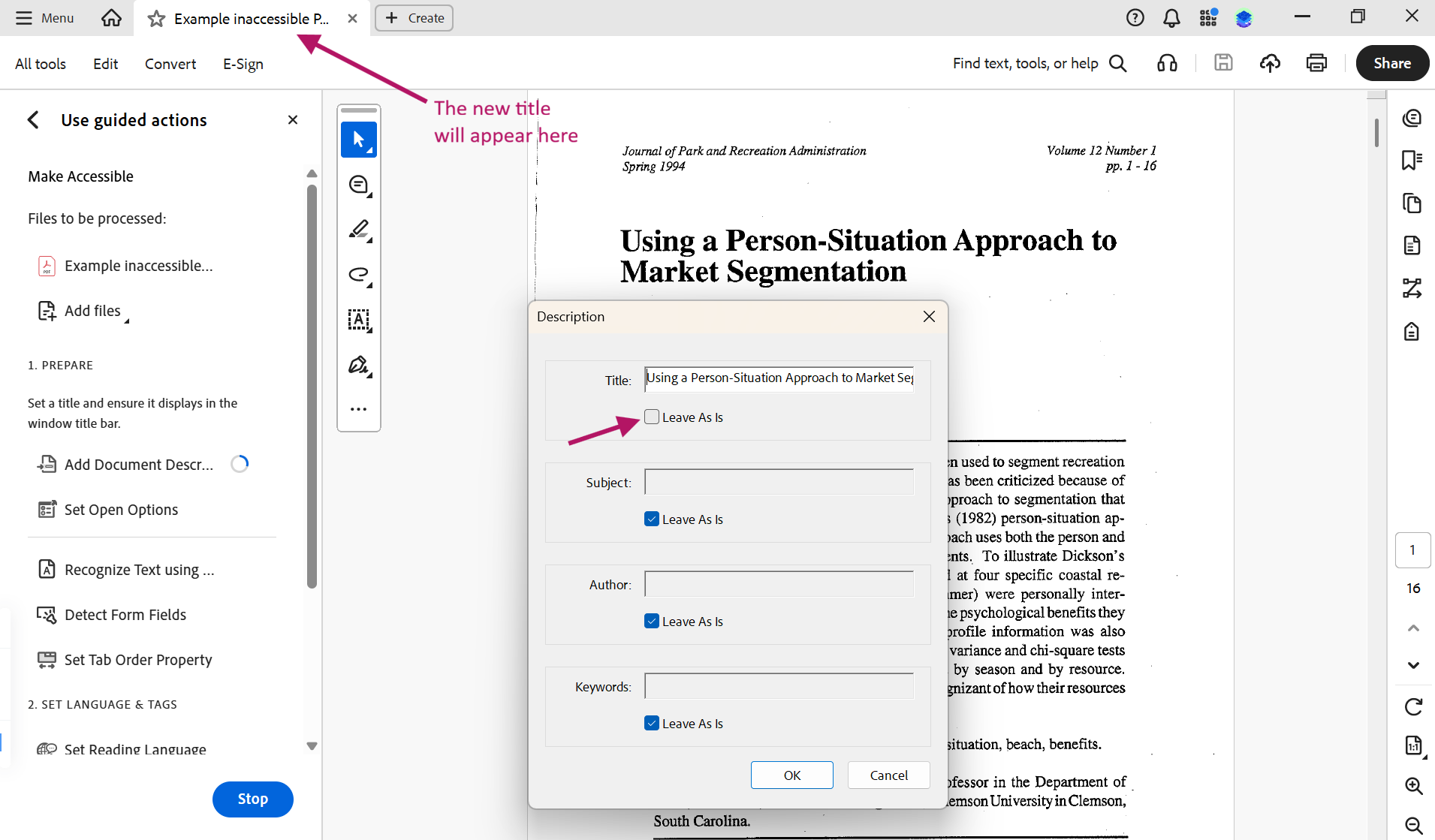
- Add Document Description: Add a brief but descriptive document title to the Title field (you may need to uncheck Leave As Is first). This title will appear at the top of the Acrobat window and will be read by assistive technology.
- Set Open Options: Acrobat handles this automatically; no dialog box will pop up.
- Recognize Text: From the Output dropdown menu, select Editable Text and Images and click OK. Acrobat may take a few minutes to process the document.
- Detect Form Fields: Click No, Skip this Step.
- Set Tab Order Property: Acrobat handles this automatically; no dialog box will pop up.
- Set Reading Language: Select the primary language in which a screen reader should read the document.
- Autotag Document: Acrobat handles this automatically; no dialog box will pop up, but a status bar will appear in the bottom corner. It may take a few minutes to process.
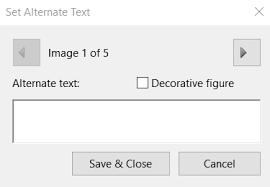
- Set Alternate Text: Acrobat will detect possible images and provide a field for you to write a meaningful description, known as alt text, for each one or mark it as decorative. Click the arrows to navigate between the auto-detected images, and be sure to click Save & Close when you’re done! If you accidentally click Save & Close too soon, you can still add alt text later.
- Run Accessibility Full Check: Please note there are limitations to Acrobat’s accessibility checker. You may find the interface can be confusing, and it does not check issues against a specific standard, such as WCAG 2.1. That said, using Acrobat’s accessibility checker can be useful in flagging issues that can often be corrected by going back to the source document.
If you are on a Windows machine, you can install PAC. It is currently the industry-standard PDF Accessibility Checker (hence PAC), but please note that it also checks for issues beyond the scope of this article.
- Add Document Description: Add a brief but descriptive document title to the Title field (you may need to uncheck Leave As Is first). This title will appear at the top of the Acrobat window and will be read by assistive technology.


Your PDF is now on its way to helping more learners access its information, including students with disabilities. Great work!
Take Your Knowledge to the Next Level
Students who rely on assistive technology to read and navigate digital content may require a more advanced level of PDF accessibility. To learn how to create document structure, logical reading order, meaningful hyperlinks, accessible forms, and more in PDF, see the LinkedIn Learning course Creating Accessible PDFs by Chad Chelius.
Resources to Learn More
- Creating Accessible PDFs (LinkedIn Learning)
- Digital Accessibility for PDFs (Clemson University)
- Changing the Title of an Adobe PDF (Swarthmore Solutions)
- Changing the Global Language of an Adobe PDF (Swarthmore Solutions)
- Converting Documents to PDF (WebAIM)
- Create Accessible PDFs (Microsoft)
- Universal Accessibility (PDF/UA) (LibreOffice)
- Going through the Make Accessible Wizard in Acrobat Pro DC (YouTube) (Note: After this video walkthrough was made, Adobe updated “Action Wizard” to be called “Guided Actions,” but the steps are the same.)
- Create and Verify PDF Accessibility (Adobe)
- Creating Accessible PDFs (Adobe)
- PDF Techniques (WCAG)