
Leaving a Google Group
Where can I access the Google Groups Page?
If you wish to change your Google Group Membership settings such as leaving the group or changing how often mail is delivered to you, go to the Google Groups page by clicking on the App Menu (or the icon made up of 9 squares) in the top-right corner of any other Google app such as Gmail or Drive.

Clicking here will open up your apps menu, where you will find the Google Groups icon.

Alternatively, you can go to this URL while logged into Google Workspace: https://groups.google.com/my-groups
How do I change my Google Group membership settings?
- Click on the group from your My Groups list that you wish to change your email settings for
- Ex. Faculty-Staff
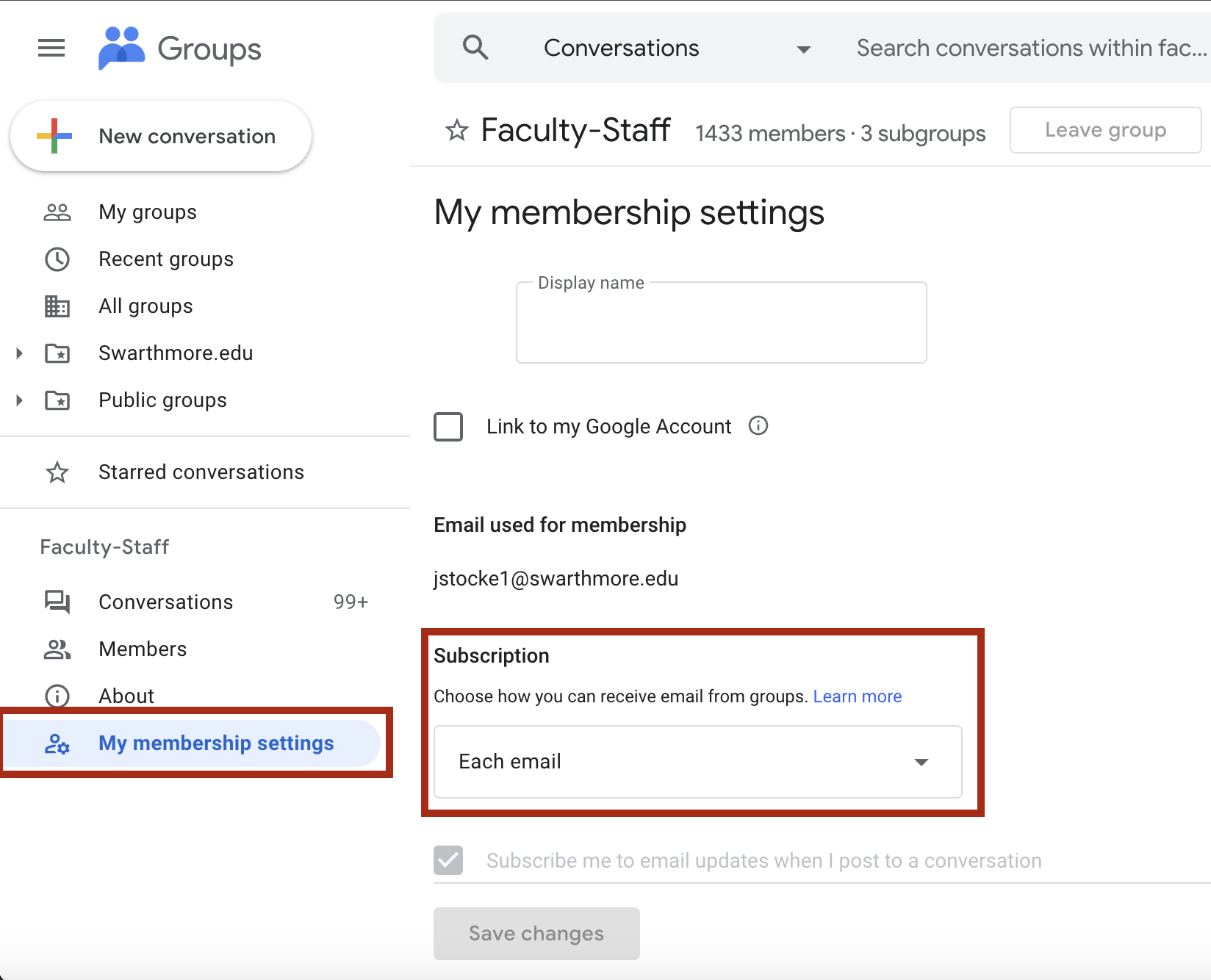
- On the left-hand side at the bottom choose My membership settings
How do I leave a Google Group?
- Once on the My membership settings page for the Google Group. Click on the “Leave Group” button

- Confirm you wish to leave the group by clicking “Yes, leave group”


How do I change my email settings?
- Click on the group from your My Groups list that you wish to change your email settings for
- Ex. Faculty-Staff
- On the left-hand side at the bottom choose “My membership settings”
- Under the Subscription section, use the dropdown menu to choose how you would like to receive emails from the group
- We suggest “Each email” or “Digest”
- Selecting “No mail” will keep you as a member of the group, however, you will no longer receive mail.

This is a summary of what each Subscription level entails.
- Each email—Messages are sent individually as they're posted to the group.
- Digest—Up to 25 complete messages are combined into single emails and sent daily.
- Abridged—Summaries of up to 150 messages are combined into single emails and sent daily.
- No email—Messages from the group are not sent.
Are there Google Groups that I can not leave?
Yes, there are a number of “Official” Google Groups where membership is deemed essential for communication from College officials. Included in this list is any group that starts with the word “official”, as well as the class year groups and residence hall groups. Group membership in these groups is automatically assigned based on the individual’s role with the College. When viewing the “Membership Settings” page for one of these groups, the “Leave Group” button will be greyed out.
