
Gmail and Apple Mail Configuration
Configuring email with Apple Mail in macOS.
Add an Account
- Make sure your operating system is up to date.
- Select the Apple Menu, then select System Settings.
- In the lefthand sidebar, select Internet Accounts. You may need to scroll down to view this option.
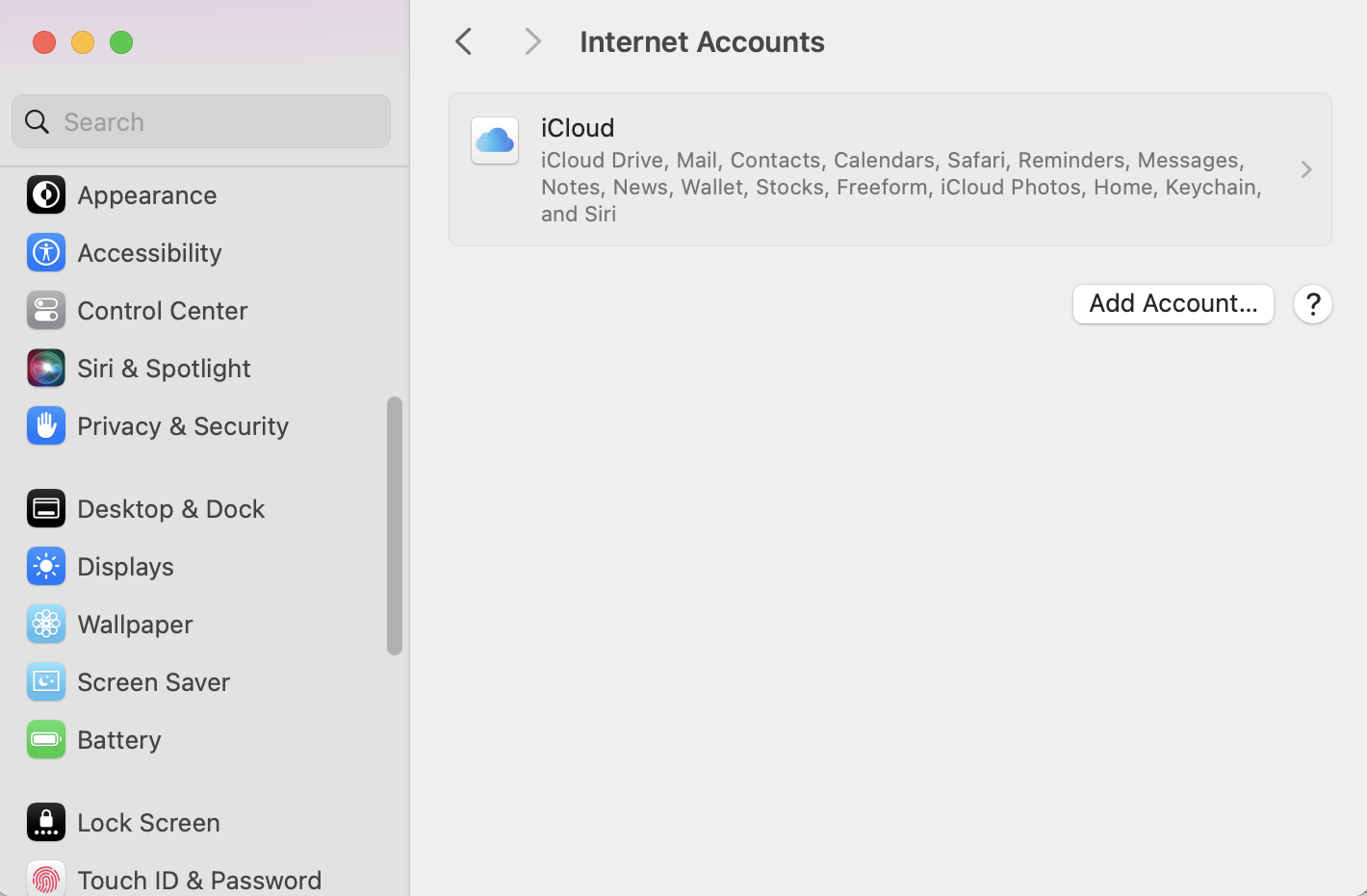
- Select Add Account…
- Select Google.
- Select Open Browser.
- Type in your full Swarthmore email address and select Next.
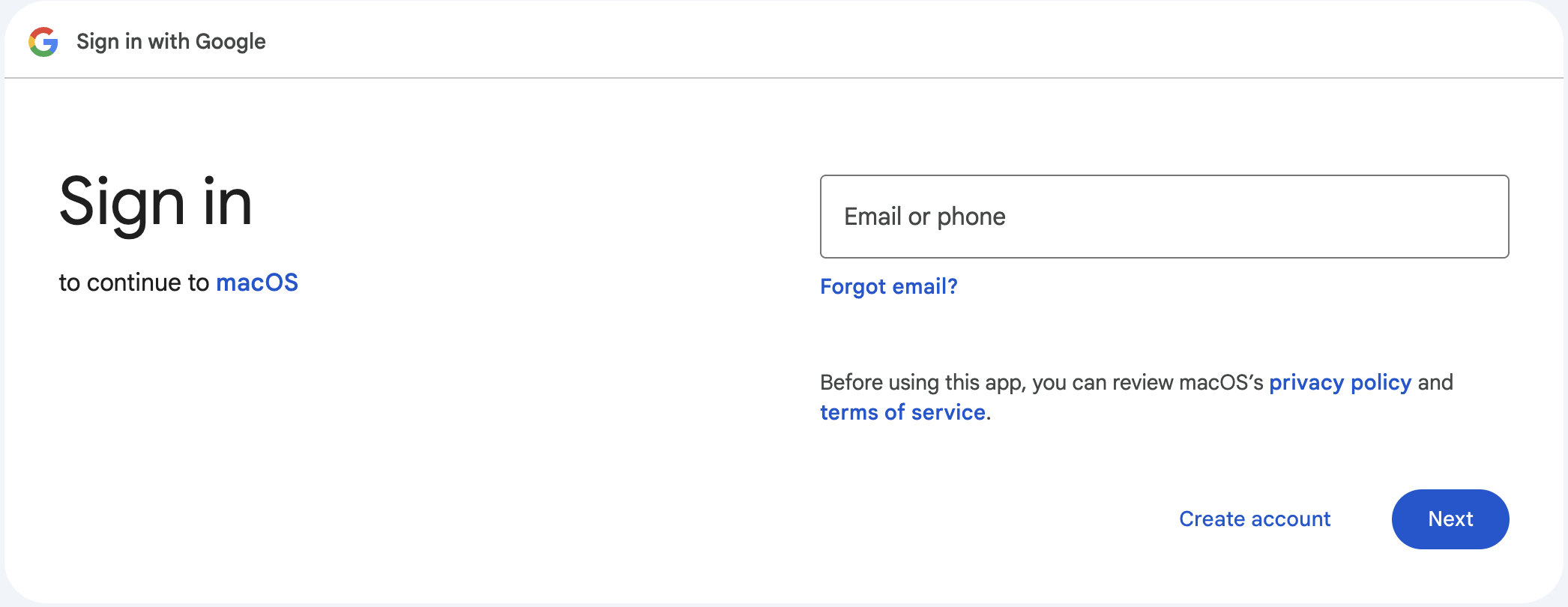
- On the Swarthmore login screen enter your Swarthmore username and password, then click Login.
- Authenticate with Duo.
- Select the apps you want to use with this account. Click Done.

- Close the Internet Accounts window. Your mail is now set up.


