Restricting access to Swarthmore only: Difference between revisions
No edit summary |
No edit summary |
||
| Line 1: | Line 1: | ||
== Documents == | == Documents == | ||
| Line 18: | Line 16: | ||
[[Category:Google Drive]] | [[Category:Google Drive]] | ||
Latest revision as of 21:15, 22 July 2026
Documents
- Open the doc in Google Drive.
- Click the blue "Share" button in the upper-righthand corner of the page.
- From there, find “General Access” in the lower-lefthand corner and select the downward arrow.

- Within the resulting dropdown window, you should see multiple options for access status.
- To limit access to Swarthmore users only, choose "Swarthmore.edu". When the link is clicked on from the web page it will prompt the user to log in using their Swarthmore credentials.

- Choose “Copy link” to add it to your clipboard. Then, click "Done" to save your changes.


Forms
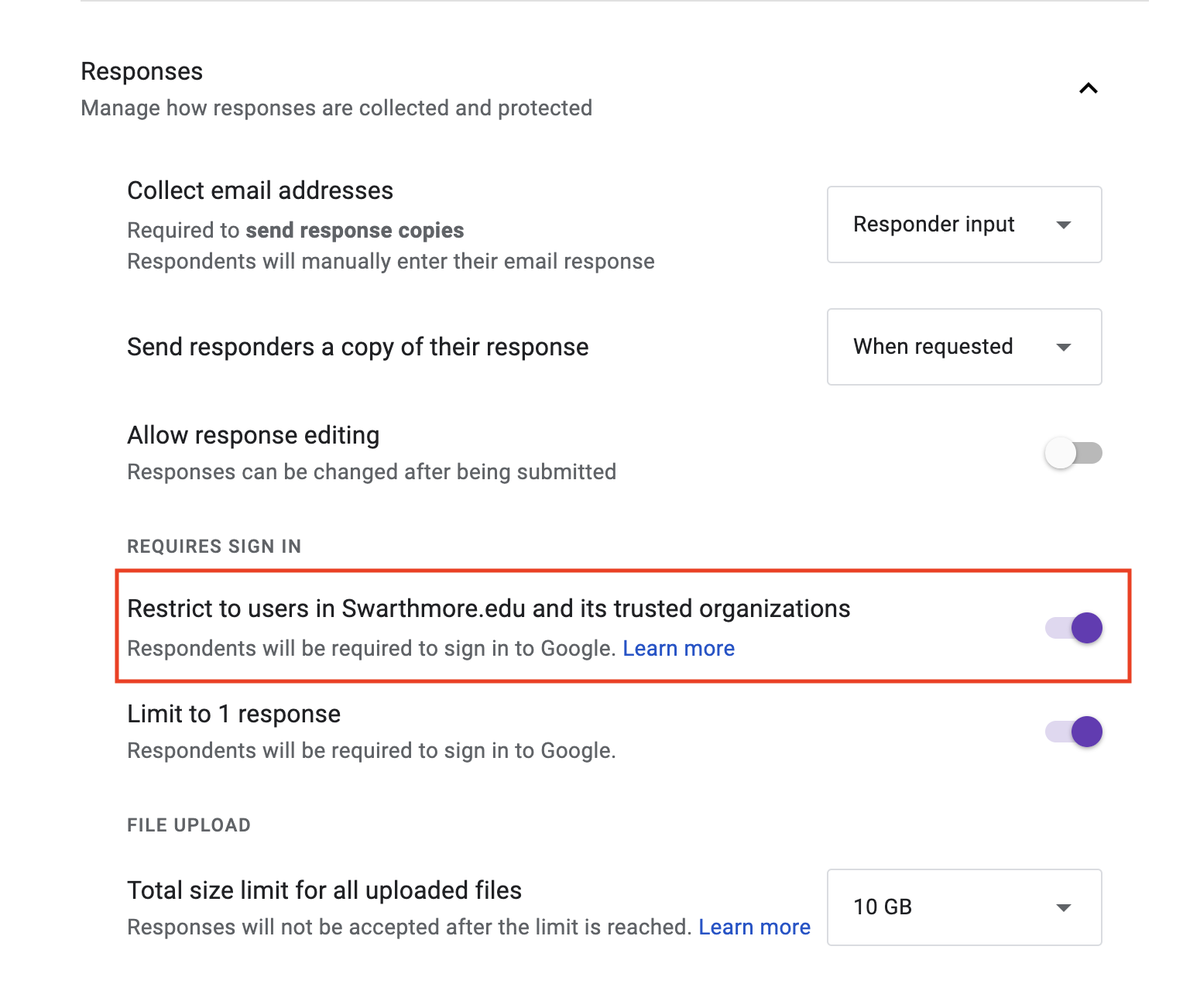
To restrict forms to Swarthmore only:
- Open your form and select “Settings” from the menu above your title.
- Make sure "Restrict to users in Swarthmore.edu…" is checked