
Gmail and Apple Mail Configuration: Difference between revisions
Imported from Confluence |
No edit summary |
||
| (One intermediate revision by the same user not shown) | |||
| Line 5: | Line 5: | ||
# Make sure your operating system is up to date. | # Make sure your operating system is up to date. | ||
# Select the Apple Menu, then select '''System Settings'''. | # Select the Apple Menu, then select '''System Settings'''. | ||
# In the lefthand sidebar, select '''Internet Accounts'''. You may need to scroll down to view this option. | # In the lefthand sidebar, select '''Internet Accounts'''. You may need to scroll down to view this option.[[File:Screenshot 2025-03-20 at 9.44.09 AM.png|600x600px|alt=The Internet Accounts tab in System Settings, which lists all active accounts, followed by an Add Account button at the bottom.]] | ||
[[File:Screenshot 2025-03-20 at 9.44.09 AM.png| | |||
# Select '''Add Account…''' | # Select '''Add Account…''' | ||
# Select '''Google. ''' | # Select '''Google. ''' | ||
# Select '''Open Browser'''. | # Select '''Open Browser'''. | ||
# Type in your full Swarthmore email address and select '''Next'''. | # Type in your full Swarthmore email address and select '''Next'''.[[File:Screenshot 2025-03-20 at 9.48.59 AM.png|600x600px|alt=A Sign in With Google window, featuring a blank text field for Email or Phone, followed by options for Create Account or Next. ]] | ||
[[File:Screenshot 2025-03-20 at 9.48.59 AM.png| | |||
# On the Swarthmore login screen enter your Swarthmore username and password, then click '''Login'''. | # On the Swarthmore login screen enter your Swarthmore username and password, then click '''Login'''. | ||
# Authenticate with Duo. | # Authenticate with Duo. | ||
# Select the apps you want to use with this account. Click '''Done'''.<br> | # Select the apps you want to use with this account. Click '''Done'''.<br>[[File:Screenshot 2025-03-20 at 9.50.51 AM.png|401px|alt=A Google-branded window, reading Select the apps you want to use with this account. Options include mail, contacts, calendars, and notes, followed by Cancel and Done.]] | ||
[[File:Screenshot 2025-03-20 at 9.50.51 AM.png|401px|alt=A Google-branded window, reading Select the apps you want to use with this account. Options include mail, contacts, calendars, and notes, followed by Cancel and Done.]] | |||
# Close the Internet Accounts window. Your mail is now set up. | # Close the Internet Accounts window. Your mail is now set up. | ||
[[Category:Gmail]] | |||
[[Category: | |||
Latest revision as of 21:26, 22 July 2026
Configuring email with Apple Mail in macOS.
Add an Account
- Make sure your operating system is up to date.
- Select the Apple Menu, then select System Settings.
- In the lefthand sidebar, select Internet Accounts. You may need to scroll down to view this option.
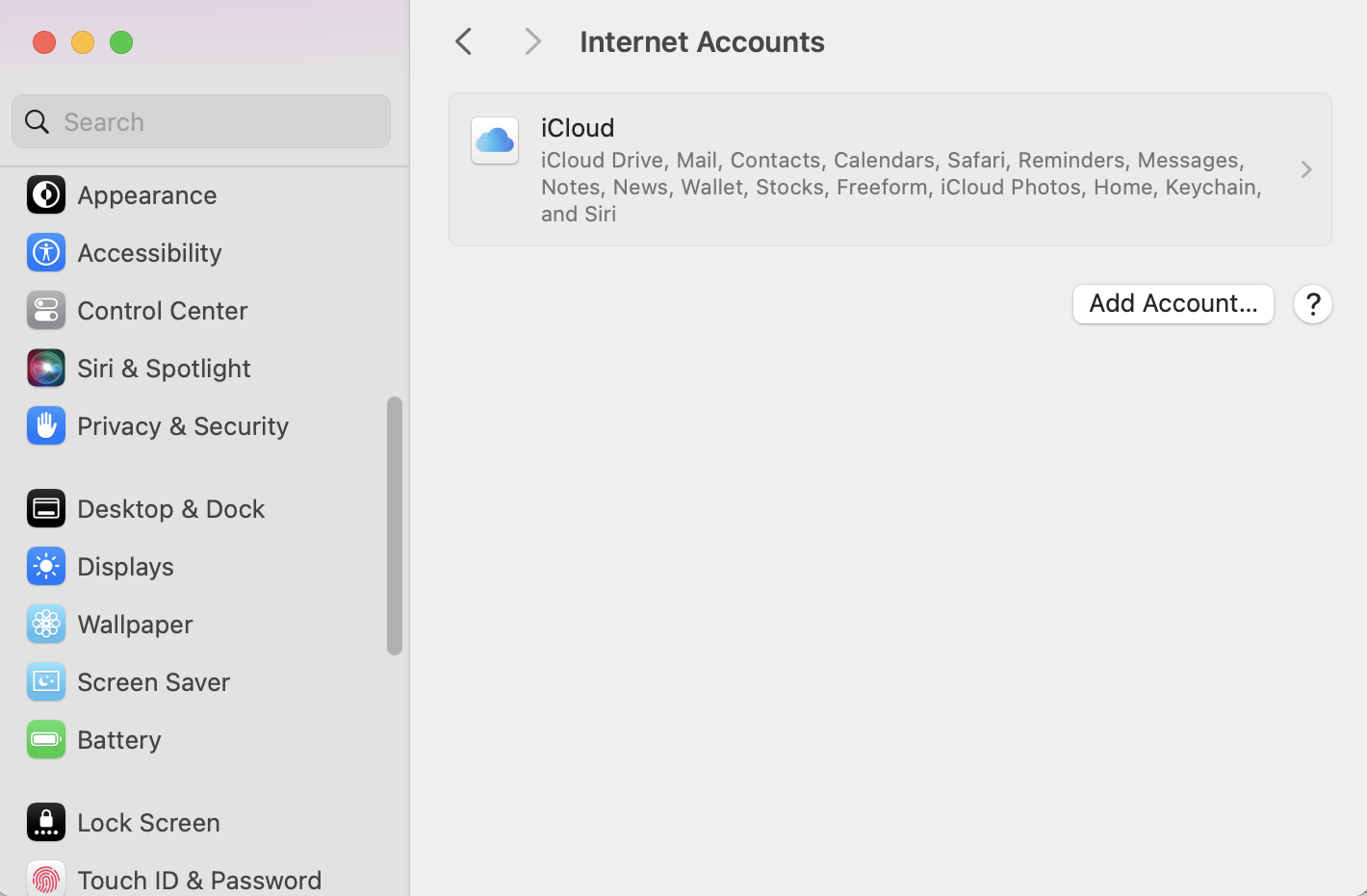
- Select Add Account…
- Select Google.
- Select Open Browser.
- Type in your full Swarthmore email address and select Next.
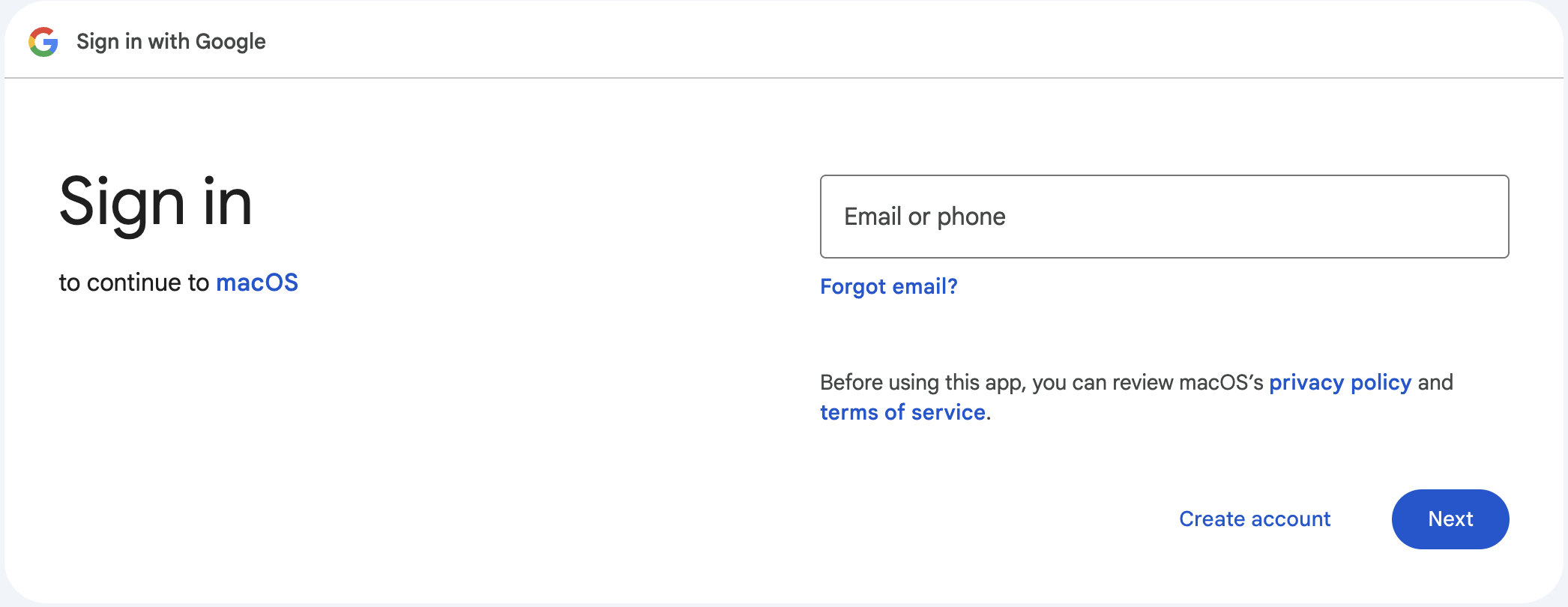
- On the Swarthmore login screen enter your Swarthmore username and password, then click Login.
- Authenticate with Duo.
- Select the apps you want to use with this account. Click Done.

- Close the Internet Accounts window. Your mail is now set up.


