
Send Mail As a Mailing List or Alias
If you are on a departmental mailing list and need to send messages from that list’s address in Gmail, you will need to set the address up as a "Send Mail As" account.
- In Gmail, open Settings from the gear menu.
- Choose the Accounts tab
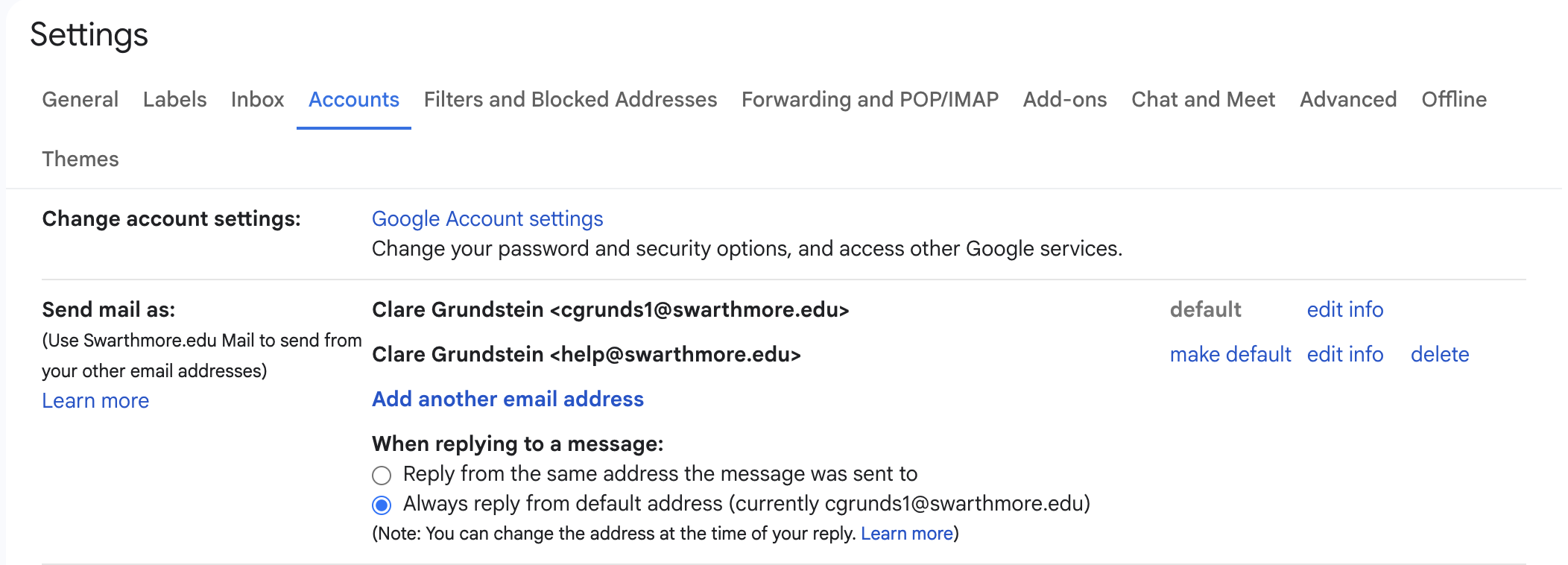
- Click Add another email address. Enter a descriptive official name for the account and the email address. Keep Treat as an alias checked.

- You will be asked to send a verification email. Click Send Verification.

- The verification email will be sent to the list. Check your inbox for the email containing the confirmation code.
- Enter the confirmation code on the confirmation window.

- Now when composing an email, you will have the option to change the "From" address to the alternate email address.


