
View Panopto Quiz Results: Difference between revisions
Automated edit: Updated image alt text for accessibility |
Automated edit: Updated image alt text for accessibility |
||
| Line 5: | Line 5: | ||
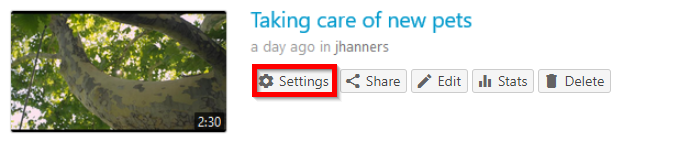
# Click on '''Settings.'''[[File:View Panopto Quiz Results 1778185904090.png|alt=Panopto video titled 'Taking care of new pets' with the Settings button highlighted|center|thumb|600x600px]] | # Click on '''Settings.'''[[File:View Panopto Quiz Results 1778185904090.png|alt=Panopto video titled 'Taking care of new pets' with the Settings button highlighted|center|thumb|600x600px]] | ||
# Click on the '''Quiz Results''' tab.[[File:View Panopto Quiz Results 1778185948544.png|alt=A sample Panopto video Quiz Results section|center|thumb|600x600px]] | # Click on the '''Quiz Results''' tab.[[File:View Panopto Quiz Results 1778185948544.png|alt=A sample Panopto video Quiz Results section|center|thumb|600x600px]] | ||
# '''Review''' results summary or '''download''' a copy. The downloaded file is in CSV format.[[File:View Panopto Quiz Results 1778185977344.png|alt= | # '''Review''' results summary or '''download''' a copy. The downloaded file is in CSV format.[[File:View Panopto Quiz Results 1778185977344.png|alt=Panopto Quiz Results Summary showing a quiz named Google Sheets Quiz with a Download link highlighted in blue|center|thumb|600x600px]] | ||
Read more about [https://support.panopto.com/s/article/How-to-Add-a-Quiz-to-a-Video#hTargetInstance2 Panopto Quiz Results] from Panopto's support documentation. | Read more about [https://support.panopto.com/s/article/How-to-Add-a-Quiz-to-a-Video#hTargetInstance2 Panopto Quiz Results] from Panopto's support documentation. | ||
{{Category Navbox|Panopto}} | {{Category Navbox|Panopto}} | ||
[[Category:Panopto]] | [[Category:Panopto]] | ||
Revision as of 01:29, 7 July 2026
It is possible to insert quizzes within a Panopto video. This page explains how to see the results of the quiz.
- Login to Panopto at panopto.swarthmore.edu.
- Hover over the video with the embedded quiz (should display menu options).
- Click on Settings.
- Click on the Quiz Results tab.
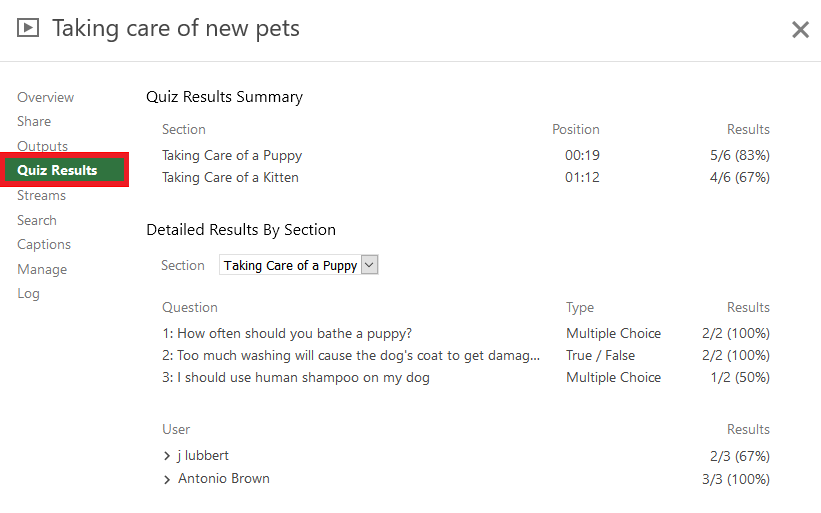
- Review results summary or download a copy. The downloaded file is in CSV format.



Read more about Panopto Quiz Results from Panopto's support documentation.