Delete all your mail at once: Difference between revisions
No edit summary |
No edit summary |
||
| Line 3: | Line 3: | ||
# Click the "'''Select all X messages in All Mail" '''link (where '''X''' is the number of emails displayed). | # Click the "'''Select all X messages in All Mail" '''link (where '''X''' is the number of emails displayed). | ||
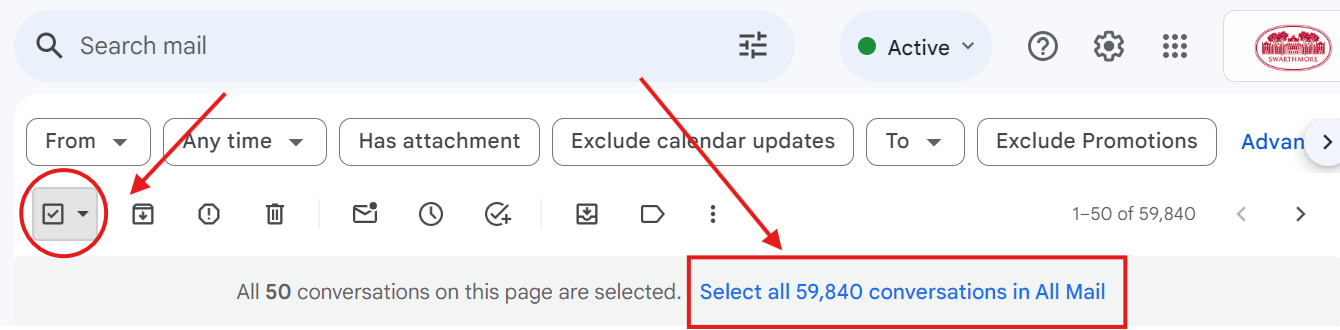
# Click the Trash icon to delete all emails.<BR> [[File:Screenshot 2024-08-20 151623.png|alt=A screenshot of Gmail's 'All Mail' folder, with arrows pointing at the 'select all' check box in the upper lefthand corner, and the 'Select all X conversations in All Mail' option to the right.|600x600px]] | # Click the Trash icon to delete all emails.<BR> [[File:Screenshot 2024-08-20 151623.png|alt=A screenshot of Gmail's 'All Mail' folder, with arrows pointing at the 'select all' check box in the upper lefthand corner, and the 'Select all X conversations in All Mail' option to the right.|600x600px]] | ||
[[Category:Gmail]] | [[Category:Gmail]] | ||
Latest revision as of 21:26, 22 July 2026
- Choose the All Mail folder from the menu on the lefthand side of your screen. You may need to select "More" to view this option.
- Check the select box in the upper lefthand corner to select all emails. You can also select "Read", "Unread", "Starred", "Unstarred" by clicking on the small arrow to the right of the checkbox.
- Click the "Select all X messages in All Mail" link (where X is the number of emails displayed).
- Click the Trash icon to delete all emails.